 Sometimes, the Tip o’ the Week is all about one topic, and sometimes it’s a theme that spans several things. Today’s is just such a smörgåsbord of stuff, spanning a number of apps that are concerned with dates.
Windows 10 dates
This is not a new topic for ToW – the swish new Alarms & Clocks app that ships with Windows 10 was covered in #280, though the UI has changed a little since then. If you hover your mouse over the date/time on your taskbar, you’ll see a  familiar preview that tells you a bit more detail. If you click on that section, you’ll see the new calendar view, with a link to Date and time settings which will take you to the system Settings > Time & language > Date & time options. In here, under Related settings, you can add clocks for an additional couple of time zones, if you need to – give them a label, then you’ll see those additional times
 displayed atop the calendar and the larger display of the current time.
Hovering on the system tray shows a simple view  of the same thing. Handy for those of us who regularly work with people from all over the world, and want to make sure you’re not booking conference calls in the middle of the night. Outlook allows you to easily show a second time zone in your calendar – just right-click on the border to the left of the calendar itself, choose Change Time Zone and in the resulting dialogue box, tick the box to show an additional time zone and give it a label.
OneNote page dates
 If you use OneNote (the desktop version – does anyone prefer the Store app?) in a shared fashion, then you’ll see coloured blocks when other people update sections of the text
 , though it’s not so easy to figure out when you last edited a page (in short, you can see the date you edited a page by looking under History tab, Recent Edits or Find by Author, but it’s not always that obvious).
If you’re using a template repeatedly (Sales Account Plans, for example, where you take a copy of a pro forma plan then complete it), or if you’re updating pages of old notes, you may want to adjust the date/time that’s displayed at the top of the OneNote page, to show yourself (and other readers, maybe) that it has updated content.

 Click on the date under the title, and then the calendar icon which appears to its side, and you’ll be able to use a date picker to change the date – or simply click the Today button to set the current date. The same process works with the time field, too – click on it, then on the clock icon, and you can set the time – with the default being the time now.
 OneNote has a couple of other neat date tricks that have also featured before on ToW – like the ability to insert today’s date or time, on the Insert tab – if you hover over the first two, you’ll be reminded that ALT+SHIFT+D or T inserts the Date or the Time, but hovering over Date & Time doesn’t remind you that ALT+SHIFT+F, does.
Tuck that away in your sporran for future use, as it’s supremely handy when adding notes (eg from a phone call) to the end of an existing page.
Other Office apps
Excel has a similarly handy shortcut – CTRL+; adds the current date to the selected cell, and CTRL+: adds the time. Word has a different way again; you can go to the Insert tab and look under Text > Date & Time which then displays a dialogue box to ask how you’d like it formatted. The same box can be got to more quickly by holding ALT then pressing N and then D, which is basically jumping to the menu using keyboard shortcuts. That same combo works in Outlook when editing an email, too.
While on the topic of Outlook, there’s one last tip and it’s a belter. Every time Outlook gives you a date & time control – like when you’re editing an appointment, for example – you can select the current value and replace it, either by typing in the new date/time or by using the date picker or time drop down.
 But the date control also has some other smarts – you can put additions to dates, for example, so you could type the end date to be “tomorrow” and it will automatically figure out the offset from today and set it appropriately. The duration of the meeting will also be set, so if you subsequently went back to the start date and typed “tomorrow”, the end date would be a day further out. Clever eh?
Here are some others to try – just type a number in the date field and it sets to that number of the current month, or type next month to set the date exactly one calendar month away from the current value (or 2 months, or 1 year…). The most useful ones are often things like next Monday or in 3 days (or just 3d if you don’t want to wear your keyboard out; next mo, 2mo, 1y do the same). There are lots of special dates too – Christmas, New Year’s Eve, Independence Day, Halloween etc. You can even combine them, so could say 2nd Monday in January or 3 days after Christmas. Maybe Outlook will integrate with Cortana one day, and you could enter “Steve’s birthday” or “my wedding anniversary”…
 It’s quite useful to have a catalogue of names that can be put to different uses. Codenames are frequently reused, and there was a time when every new product had to have a snazzy moniker – remember
 or better still, use the excellent
 Fortunately, with OneDrive and Office365, reinstalling isn’t the major effort it used to be – with a huge mailbox, nobody should need PST files anymore and fret about whether they’re backed up properly. No need to worry about My Documents when OneDrive (on your home machine) can accommodate Terabytes of data, and OneDrive for Business (on your work PC) will sync all of your stuff too.
 OneTastic adds loads of functionality, including a macro language and the
  If you use lots of notebooks, there’s a neat feature in OneCalendar, which might help – take a look in Settings
  and you can specify which notebooks OneCalendar will show you changes from – so you might want to restrict it to the less busy notebooks and all your own personal stuff, or maybe even get into the habit of turning some on & off when required.

 For new upgraders, the first thing you might decide to do with Edge is to restore your favourites from IE – click on the multi-line icon on the toolbar, then the star (which represents Favourites), and click Import favourites to bring yours from IE. Some degree of username/password history will come across as well, though you may need to select the username on the first visit to a web page (as cookies are not migrated across).
 If you are find sites that don’t like Edge, you can always click on the ellipsis (…) menu on the top right, and click Open in Internet Explorer, and the page will launch in IE11. Whilst you’re at it, you might want to pin the IE icon to your taskbar by right-clicking on it – then you can always go straight to IE next time.
 high-level settings, but don’t stop there –make sure the language pack isn’t still searching Windows Update, and that each of the components has been downloaded.
  make sure the language you speak is correct.
 If you make sure that you have the correct language pack installed, and that it’s set as the speech language, then you should be allowed to enable Cortana.
  which will mean she’s listening out for you to say that all the time… and will jump in with a spoken response to your every query. Just make sure your Windows Phone isn’t nearby or you’ll end up cheating on one Cortana with another. Let’s wait for the
 on the icon that’s pinned to the taskbar by default, or else simply press the WindowsKey+e. Out of the box, you’ll see a couple of changes to simplify File Explorer when compared to Windows 8, namely to show recent files and folders and the Quick Access pane, as the main display of the Explorer window, rather than
  just showing a list of drive letters or network locations.
 to has been found to partially exist in Windows 8.1 too, so maybe it’s a bit of a hidden gem – when in File Explorer, if you press ALT+d, the cursor & focus jumps to the address bar and you
  can start typing the name of key folders and recent files, and you’ll see the name show up in autocomplete – so to get to Downloads, just start typing down and then with a single press of the down cursor key then enter, you’ll jump straight there. This may seem trivial but to hardened keyboardistas, any reason to
  If you still like using the pointing doodah, you can click on the caret to the side of the icon that shows whatever folder you’re in (and it will change as you move around), and you’ll get a short cut menu that also includes regularly used folders.
 Another neat one, for some at least, is that if you select a folder within Explorer, and go to the File Menu, you’ll get the option of launching a command prompt or PowerShell window with the focus directly on that folder
 the link, the download bit will be getting very constrained too – so you could see your overall network performance drop dramatically. Take a look using the Network Speed Test app (
 Depending on your version of Windows, the specifics may vary a little, but they generally start by looking for the Task Scheduler in control panel – something that’s existed since the very earliest days of Windows NT, though used to be a command-line only thing. Now with Task Scheduler, you can create jobs that do something on your machine according to a load of conditions – running at user logon, or at a time but only if someone’s logged in, if it’s been idle for a while etc.
 – just create a new task, tell it when you want it to fire (midnight, when everyone’s gone to bed, and 9am, when everyone’s left the house could be good times?) and set the action to run.

 Assuming it’s running at the time, you should be able to see the OneDrive icon in the Windows taskbar, and if it’s busy uploading you’ll see just how it’s getting on by clicking on the icon.
 Back on terra firma, if you do need to write emails that may not need to be sent or read over a weekend or during the night, you could try Offline mode: simply go into the Send/Receive tab of the main Outlook window, and click the icon in Preferences.
 sending them, which could be handy especially if you’re bulk-sending. Alternatively, when in online mode, you, you can delay individual emails’ sending time by looking in the Options | Delay Delivery section of the actual message window.
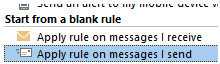 message that this rule will apply to every message…
 synchronised with the server or anything else – so if you hit send and then immediately close the lid on your laptop, your PC might go to sleep and the email will stay in Outbox until it resumes again…
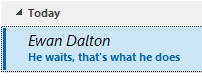 If you get cold feet on sending, or decide you need to edit your missive, just go into the Outbox folder, and if the email shows with the recipient name or address in italics, then it means it’s waiting to be sent – if you open up the mail and then just save it again, it’ll stay in the Outbox but won’t be sent until you edit it again and press the Send button again.
 but still cool updates. One such is the new calculator app, a “modern app” which has been enhanced compared to the old-fashioned
  “
“


 The calculator doesn’t do currency conversion, but Bing.com
  does a decent job of that – just type the currency symbols or standard identifier into Bing and you’ll get an approximation. Add the quantity too if you like.
 For some time now, the
  the current time and a date picker that’s been redesigned to be
  touch-friendly. Clicking on Additional clocks also launches the new Alarms & Clocks application which integrates a couple of useful stopwatch & timer functions as well as a day/night view of the world map, and a configurable list of locations that you may want to keep an eye on, so you know the time at a glance.

