#785: Enshittification (Part II) – snapping & mapping fails

Around a year ago, old-school Tip of the Week had a “2025 Enshittification: part 1” post which looked at how online services routinely drop features that people like because it suits the provider to not sustain them. It’s high time to revisit the topic, specifically looking at changes being made to online mapping services and one popular document scanning app.

In truth, if you’re going to rely on a free service, be ready to expect the provider to muck it up for you. If you like to look at your old house on Google Street View, best head over there now and screengrab it as some day they may decide to stop storing previous captures or something.

It feels like it’s only a matter of time before Amazon starts making Alexa a paid-for service, or subsidises free use for telling you the weather or play the radio by playing “would you like to buy a new Carlos Fandango umbrella to protect you from tomorrow’s rain?” inline ads.

Microsoft Shutters Lens

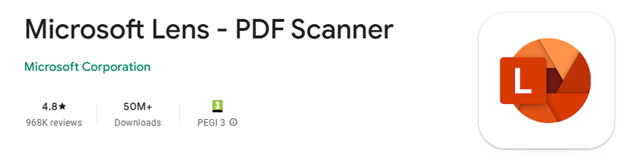
A bit niche, maybe, but Microsoft has been offering a scanning app for smartphones for years. Originally called Office Lens and available for Windows Phone since 2014, later rebranded (of course) Microsoft Lens and even gaining “PDF Scanner” to tell you what it’s primarily for. It was previously discussed in old ToW #682. There used to be a PC app as well as iOS and Android ones, but that has gone already.
Article content

Despite nearly 1M ratings of average 4.8 and over 50M downloads on Android, its days are numbered. Rather than keep Lens alive, Redmond has decided to build some of its functionality into other apps, like OneDrive and/or OneNote. Sadly, neither is as simple, fast or fully-featured as Lens is/was. RIP.

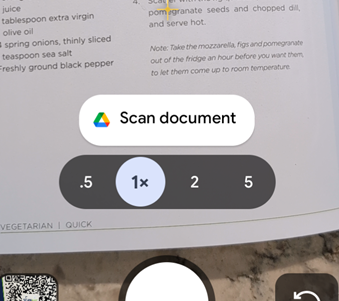
Of course, there are plenty of other alternative scanning apps, including the built-in one for Android users, where you just point the camera at something which looks like a document and it’ll give you a shortcut to Google’s own scanning software which can detect page edges, bundle multiple scans into a PDF and so on. Since the scan feature is part of the Files app, you can go there and start a scan directly too.
Article content

At least Lens had a fulfilling life in the sun, unlike Viva Goals, a product of acquisition which likely cost Microsoft $200M+, and was deep-sixed after only 2 years.


Google “Privacy” copout

How many times have you seen a statement like “for your safety and security”, and realized that its primary goal is actually to make somebody else’s life easier?

Google had a neat feature, if you chose to turn it on, where Maps on your phone would keep a record of where you’ve been and upload to your Google account, so you could view your travels within Google Maps on your computer. Called Timeline, it was briefly covered in previous ToWs including the trend for apps to be replacing websites and not always to the users’ benefit.
Article content

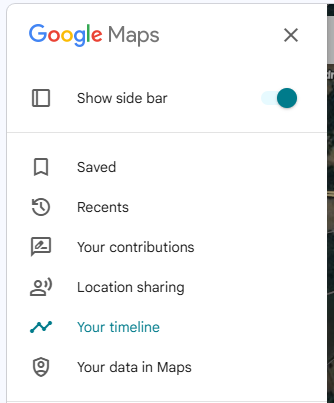
Timeline was discontinued so you could no longer go to Maps and see where you’d been in the past. It’s tantalizingly still there in the menu today, but all it does is tell you to use the mobile app and offer more help on the activity controls.

The reason? For privacy’s sake, Google was no longer going to store all that info on its servers, rather the tracking data would only live exclusively on your primary phone. Sounds fine, unless you lose the phone and don’t have it backed up, or some other calamity occurs and deletes all the data.

Is this to protect the user? Or is it to protect Google from liability in case its service was somehow compromised, and the whereabouts of millions of people over time had been made available?

The DIY Alternative

If you like the ability to track where you’ve been, whether that’s to make your mileage claims easier or just to provide yourself an alibi when accused of being somewhere else, there are alternatives to Google Maps / Timeline though none are quite so easy to use. Self-hosting – as in running a server on your own network rather than relying on a cloud provider who might vanish tomorrow and/or start monetizing your data – is a favoured option for tin-hat wearers and honest folk concerned with privacy and/or who prefer to make their own lives difficult.

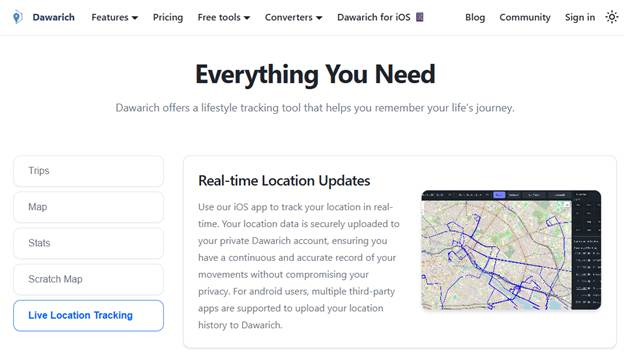
The leading alternative to Timeline is probably an open source project called Dawarich, available either as a subscription cloud service or software you can run on your own. If you have a Synology NAS device with enough oomph to run Docker, there’s an easy to follow* guide, How to Install Dawarich on Your Synology NAS.
Article content
Dawarich.app

*easy to follow may be relative to your exposure to config files, IP address mapping etc

Dawarich lets you import location history from Google Maps or you can have apps on your phone regularly tracking and reporting your location history directly to your Dawarich server.


Is Bing Maps really a Zombie?

Sticking on the theme of making mapping stuff worse, Microsoft has been busy “evolving” Bing Maps.

Launched as “Virtual Earth” over 20 years ago, it morphed into numerously named Windows Live, MSN and eventually Bing Maps for consumers as an alternative to Google Earth and Google Maps, and also aimed at enterprises in the hope that they would build mapping services into other applications and pay for the privilege. There had been a previous set of software and services called MapPoint dating back to the Y2K, now superseded.

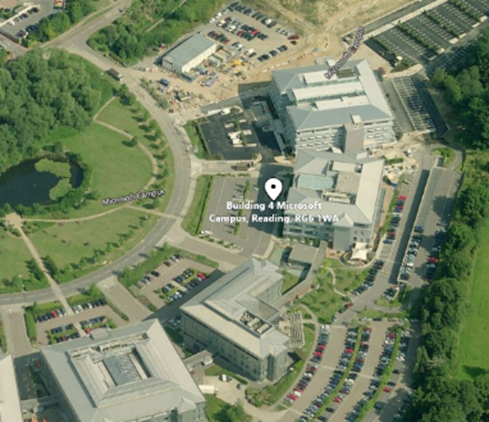
There were some cool features that differentiated Bing from Google when it came to maps – things like high-resolution “Birds Eye” images taken from spotter ‘planes…
Article content
Microsoft UK HQ – TVP – in old “Birds Eye” images – note that B5 was still being built, so must be 20 years old?

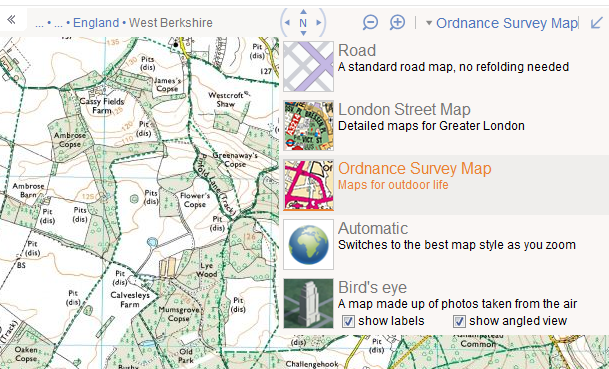
… to free use (for UK users) of the Government’s Ordnance Survey mapping data. At one point, Bing even licensed the old A-Z maps for London, as “London Street Maps”.
Article content
Bing Maps showing Ordnance Survey, with other options including licensed London A-Z Maps

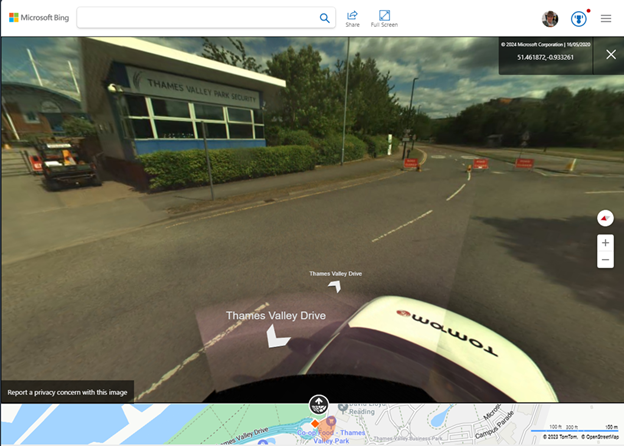
Bing also offered drive-by imagery akin to Google Street View called Streetside. It was never quite as good as Google’s service and it took years to become available internationally, but there were places where it would have more up-to-date pictures compared to Google’s own Street View pictures and data.
Article content
TomTom “surveyed” Thames Valley Park at a time when the park was closed

As you can see from the view above, the images were taken by cars operated by veteran satnav provider, TomTom. Similarly, the Ordnance Survey maps and Birds Eye images were licensed from other 3rd parties.

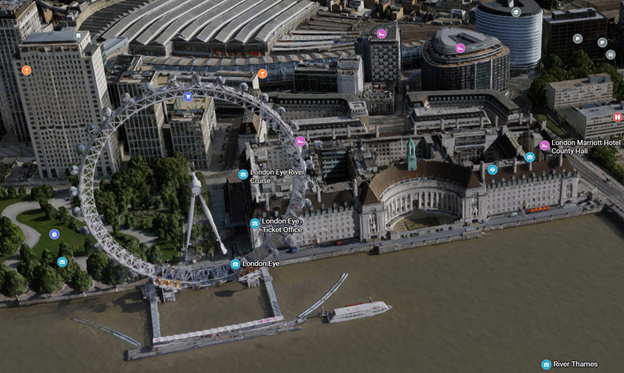
Unfortunately, when a licensing agreement exists then it also means at some point, one or both parties might decide to not continue it. Such has happened with Bing Maps, the consumer offering – it has dropped pretty much everything of interest beyond basic map and satellite views. A 3D option does offer some cartoonish generated models of some areas, though it’s a long way from being universal.
Article content
The London Eye in a mock 3D render. Looks OK from a distance but like a 1990s arcade game up close

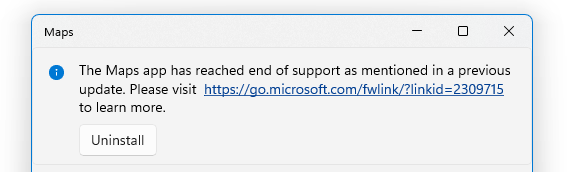
Microsoft also had a Maps app for Windows, which was a wrapper for the Bing Maps service but could also deal with offline data. Presumably due to lack of use, the Maps app has now been taken out behind the bike shed and given a good knobbling:
Article content
Nothing to see here, move along, move along

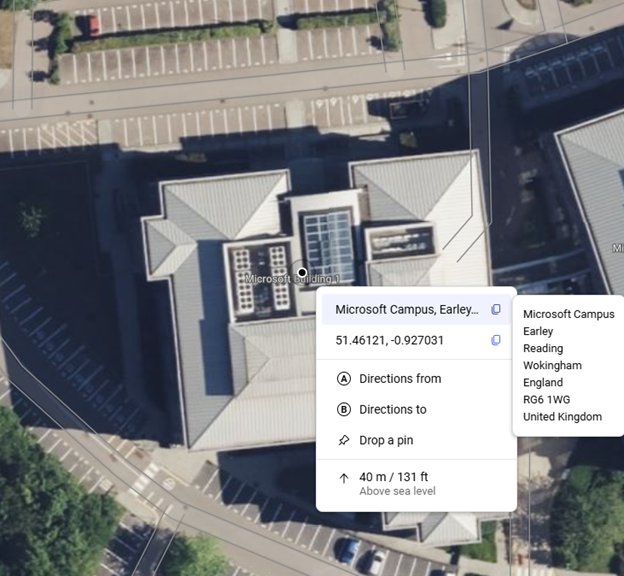
On the plus side, one useful feature which wasn’t present previously, the latest Bing Maps will show the exact address (including Post Code or Zip Code) of any point you right-click on, also displaying the lat/long coordinates and even the height above sea level.
Article content
Bing Maps still shows Microsoft Buildings in TVP. B1 is the last remaining one open.

It was announced that Microsoft is shutting down Bing Maps for Enterprise and migrating everything at the back end to using Azure Maps, which has a different set of functionality primarily aimed at developers looking at embedding maps into other sites and overlaying other data onto a map. It’s easy to wonder at what point Redmond will pull the plug from Bing Maps altogether.

Accessing Missing data from Bing

Sadly, there’s nowhere else providing the TomTom Streetside views, nor the Birds Eye images, other than going to Google Maps and seeing what they have.

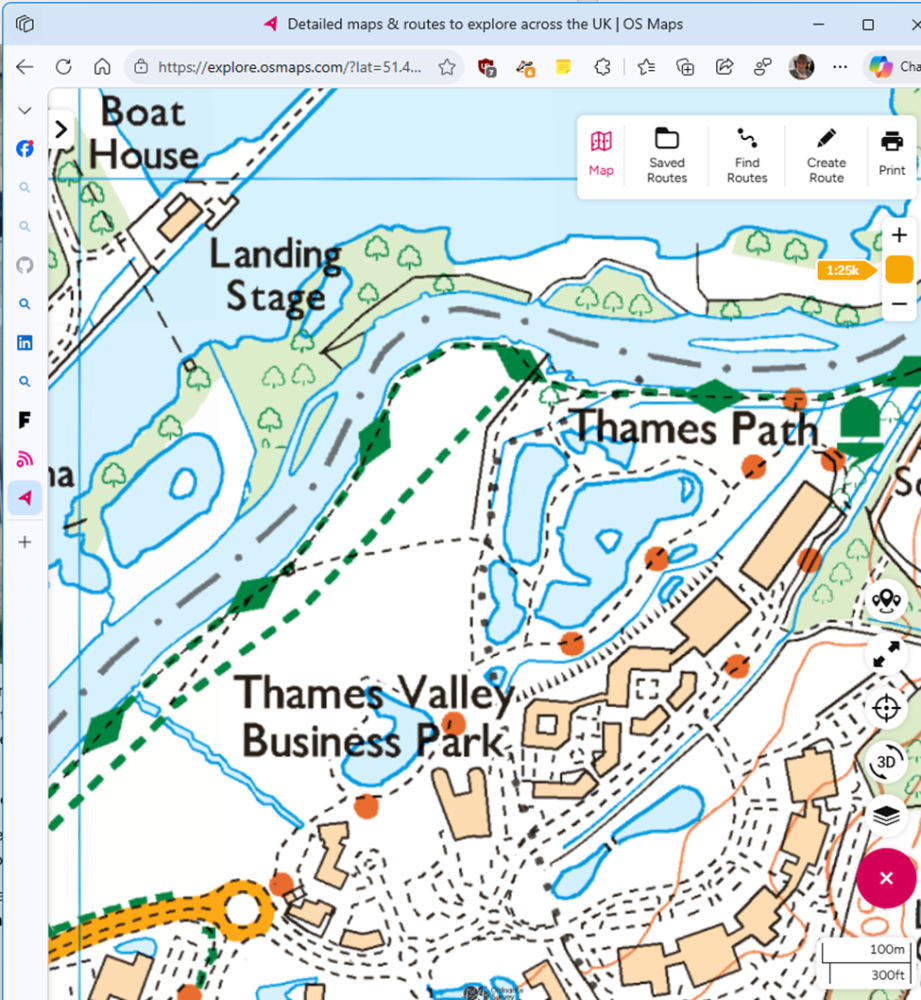
If you miss the OS Maps feature from Bing Maps, there are few alternatives – the best is probably OSMaps.com, which still offers (for a subscription) what they call topographical maps (i.e. OS LandRanger or Explorer). It’s a little clunky but has a reasonable mobile app too, so you can plan trips and take them offline with you.
Article content
TVP from the Ordnance Survey site – www.osmaps.com

682 – Lens scanning

clip_image002

Continual advances in the quality of smartphone cameras mean that most people don’t use a physical camera any more; unless you are really demanding when it comes to control over digital imagery, phone cameras are good enough for most people, most of the time.

Compact cameras have evolved too, providing phone-beating snaps through better sensors and lenses than could possibly fit in the body of a handheld communicator. More light hitting a larger sensor through a bigger, higher quality lens gives you a better starting position to get a decent picture, though smartphones have powerful software and – increasingly – cloud services available to help improve the photo after it’s been captured. Higher-end cameras are changing, too – even Hasselblad (famed for moon shots but also for the most famous photo of the world) is ditching the DSLR model and going mirrorless. The horror!

clip_image004Marrying high-resolution imaging with powerful software in the palm of your hand does give you access to new capabilities that a generation ago would be almost unimaginable science fiction.

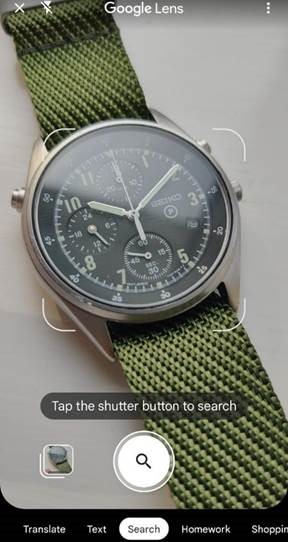
clip_image006Check out Plant Viewer to identify which is weed and which is flower, or Google Lens to capture information from the camera or even just to try to identify whatever you’re pointing it at.

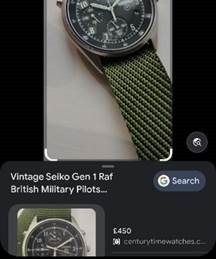
As the world has discovered with ChatGPT and Google’s Bard, responses from AI powered services are not always quite correct, even if they appear convincing.

As any fule kno, this item in question is in fact a Seiko RAF Gen 2 (not a Gen 1), even though Google successfully found one for sale, that looks identical.

Google Lens is available on iPhone and iPad too, and depending on the Camera app you use on Android, it might also be launched clip_image008from there (and most Android devices will launch the Camera app if you double-tap on the power button, so it’s a quick way of getting to Camera, even if the device is locked).

Microsoft Lens is one of the best “Lens” or scanning apps in either mobile store (Fruity | Googly). Formerly “Office Lens”, at one point also available as a Windows app (but now discontinued) and since rebranded somewhat by its listing in the mobile app stores as Microsoft Lens: PDF Scanner, though it can do lots more.

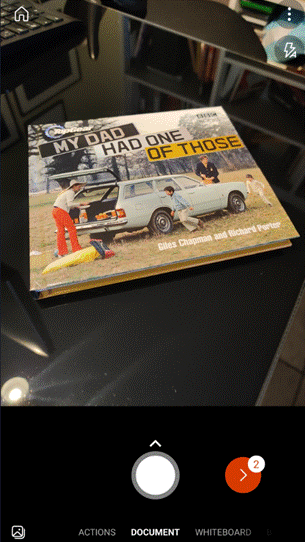
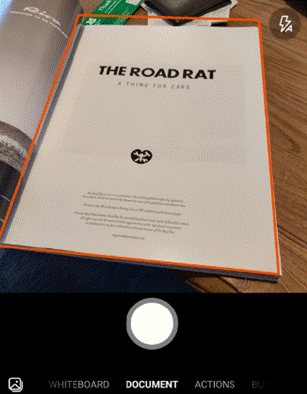
The premise of Microsoft Lens is that clip_image010you can point the camera at something and scan it, by taking a high-resolution photo of the thing and then using the software to manipulate, crop and adjust the image. The most obvious use case is scanning a Document; start the Lens app, lay the doc out as clearly as you can and then step through grabbing each page in turn.

clip_image012The red > icon in the lower right shows how many pages have been captured so far. In earlier versions of the Lens app, you’d try to frame the page at the point of capture but now you just grab the images one-by-one (using the big white button) and do the tidying up later.

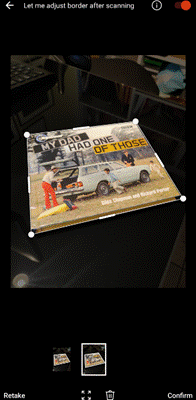
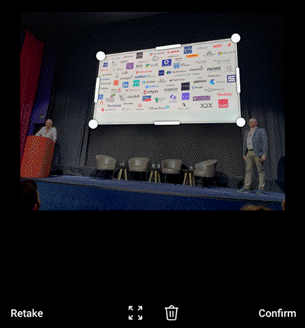
Press that red button and you’ll go to the UI where Lens tries to identify the corners of each page, and lets you tweak them by dragging the points. You could retake that individual image or delete it from the set of captures.

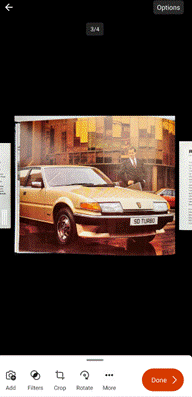
Press the confirm button on the lower right and you’ll jump to a review of the captured images, giving the option of rotating or adjusting each one, cropping, applying filters to brighten and sharpen them and so on. Once you’re happy that you have the best-looking images, tap on Done to save your work.

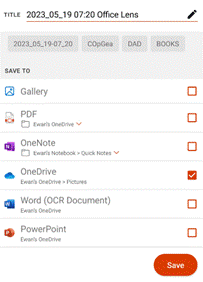
clip_image014You could send all the pictures into a Word or PowerPoint doc, drop them all into OneNote or OneDrive as individual files, or combine all the “pages” into a single PDF and save to your device or to OneDrive.clip_image016

There are other tools on the primary screen of the Lens app, too, if you swipe left to right. The Whiteboard feature lets you grab the contents off the wall and applies a filter to try to flatten the image and make the colours more vibrant.

There’s a Business Card scanner which will use OCR to recognize the text and will drop the image of the card and a standard .VCF contact attachment into OneNote, ready to be added to Outlook or other contact management tool.

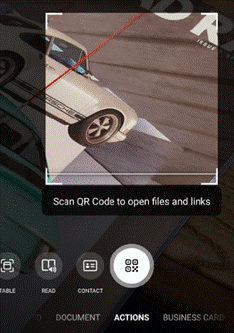
The Actions option on the home screen gives access to a set of tools for capturing text and copying it to other applications or reading it out. There’s also a QR code and barcode scanner too.

clip_image018One somewhat hidden feature of Lens could be particularly useful if you’re sitting in a presentation and want to capture the slides for your notes.

clip_image020Start the Lens app, and instead of using the camera to grab the contents and then faff around trimming them, tap the small icon in the bottom left to pick images from your camera roll. This way, you could just snap the slides quickly using the normal camera app and do the assembling and tweaking inside the Lens app, later.

This photo was taken on a 4-year-old Android phone, 3 rows back from the stage at an event using the Camera app with no tweaks or adjustments. It was then opened in Lens, which automatically detected the borders of the screen and extracted just that part of the image into a single, flat picture.

clip_image022That logo on the top right looks familiar…

For more info on Lens, check out the Android and iOS support pages. Oh, and it’s completely free.

580 – Let’s Lens

clip_image002For some years now, Microsoft has produced an application for mobile devices, which allows easy scanning of bits of paper, photos from physical whiteboards or importing of contact info from business cards.

The “Office Lens” app was originally produced for Windows Phone before being ported to iOS and Android. Later, a PC version came along but with the death of Windows Phone it hardly seemed worth keeping going, since scanning docs and business cards etc is so much easier from a handheld device. As a result, Office Lens on the PC is now gone – dispatched at the end of 2020; if you had installed it previously, you could still use some of its functionality, though the smarter online services that sat behind it are no longer available.

clip_image004Instead, the old Office Lens mobile apps on the surviving smartphone platforms has been renamed “Microsoft Lens” – along with the release of some improvements and new features.

There are tweaks to the algorithms used to detect edges of documents when scanning pages or turning a receipt snapped at an angle into a square-on image. It’s not always perfect, but you can drag the apices to tidy up the process, and save pages as images on their own or multiple pages of a document into a single PDF file, straight to OneDrive or local on the phone.

clip_image006There is also a new “Actions” feature which lets you interact with reality – grab text from something you point the camera at, and potentially feed it into the Immersive Reader so the phone will read it out to you. You can also extract a table from the physical world, or scan a QR code or barcode from something in your hand.

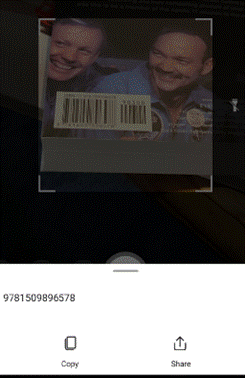
clip_image008The QR scanning is pretty slick, focussing on URLs or files, quickly enabling you to follow the link or view the doc (and ignoring some types of QRs used for encoding a membership number or serial number of a device, etc).

Similarly, barcode reading just brings back the number, whereas some other apps will provide a bit more context – Lightning QR Reader for Android, for example, can read any text encoded in a QR code and will also give some more details for barcodes, like decoding ISBN codes on books to let you search for more info on that specific title. Still, Lens provides a neat & quick solution for scanning or capturing all kinds of info.

clip_image010Microsoft Lens (on both Android and iOS) is described as a PDF scanning tool, but it’s also got a ton of extra functionality which is worth checking out if you haven’t used it for a while.